Solutions / Appointment booking
Bookings taken by phone, straight into your calendar.
The agent takes the caller's details, checks your calendar for free times, offers a few options and confirms the booking before hanging up.
Inbound call
+61 4 9876 5432
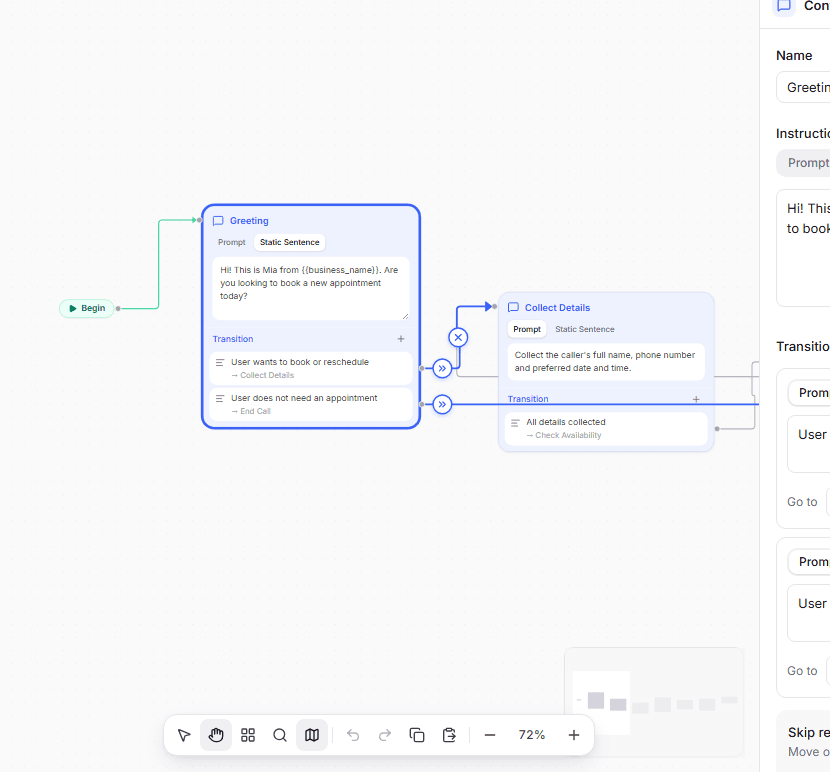
Agent: Hi! This is Mia from Bondi Physio. Are you looking to book a new appointment today?
Caller: Yes, something Thursday morning if you have it.
- Checking Thursday morning in the calendar
Agent: I have 9:00 or 10:30 on Thursday. Which suits you better?
Caller: 10:30 please.
Agent: Done. You're booked for Thursday at 10:30. See you then.
Illustration of an example call.
What the agent does
The job, step by step.
- Typical setup
- Set up as
- Step by step, 7 steps
- Can do
- Check times, book, cancel
- Calendar
- Cal.com, Calendly or your own system
- Captures
- Name, phone, preferred time, booked or not
- 01
Take the right details
Name, phone number, reason for the visit and the time that suits them.
- 02
Check real availability
Looks at your calendar while the caller waits, and only offers times that are actually free.
- 03
Confirm before booking
Reads the time back, handles changes and only books once the caller agrees.
- 04
Move and cancel
Callers can reschedule or cancel too, each with its own confirmation.
After the call
Every call, summed up.
When the call ends you get a short summary, how the caller felt, whether the call did its job, and the details you asked for, ready to send to your other systems.
Call summary
Summary
New patient booked a physio appointment for Thursday at 10:30.
Details captured
- BookedYes
- TimeThu 10:30
- New patientYes
In the dashboard
Set up in the Tried dashboard.
Questions
Something missing? Email hello@tried.com.au.
Which calendars does it work with?
Cal.com and Calendly connect in a few clicks. Your own booking system can be connected too, if it can be reached online.Can it send a confirmation?
With Cal.com, the booking confirmation comes from your calendar as usual. With Calendly, the agent creates a booking link for the caller.Do I need to map out every step?
No. Start from the appointment booking template and change only what is different for your business.
Other use cases
- AI receptionistAnswers every call, handles common questions and puts callers through or takes a message.
- Lead qualificationCalls new leads within minutes, asks your questions and puts the good ones through to sales.
- Customer supportAnswers common support questions, looks up orders and passes the rest to your team.
- Outbound callingCalls your list for reminders, follow-ups and surveys, during the hours you choose.

Have you Tried it yet?
Create an account, pick a template and talk to your new receptionist in the browser. You only pay for the minutes you use.